

From the Studio: Plain-English Buyer Guides

Practical Step-by-Step Guides for Business Owners

Clear answers on how your first 24 hours work, how 24/7 AI handles after-hours calls and auto parts lookups, how independent booth renters operate alongside commission staff, and how to configure the right package scope.

What to expect in your first 24 hours with Businesses OS (From setup to first live checkout)
Buyer Guide 01 · 4 min read

What to expect in your first 24 hours with Businesses OS (From setup to first live checkout)

You do not need an IT department or weeks of training to switch your shop, store, or clinic to Businesses OS. Here is the exact timeline from creating your account to closing out your first BimPay, 1stPay, or Cash ticket.

Hour 1: Select Your Blueprint & Open Free Ask AI

Create your account and load your industry template

Pick Barbershop/Salon, Online Store/Auto Parts, Retail/Trade Counter, Medical/Dental Clinic, or Field Services. Your dashboard opens with pre-built categories and the Ask AI Setup Guide included at no extra cost to answer any setup question.

Hours 2 - 4: Load Services, SKUs & Staff Chairs

Add your service menu, staff compensation rules, and barcodes

Enter your grooming or clinical service menu or import your retail SKUs and auto-generate SVG barcodes. Assign each staff member as Studio Owner (100%), Independent Booth Renter (weekly rent), or Commission Split.

Hours 4 - 12: Connect Booking Links & 24/7 AI Receptionist

Publish your zero-commission booking or storefront link

Share your main shop booking link and individual specialist booking links on Instagram and WhatsApp. If you added a 24/7 AI Employee Suite module, Samantha Voice AI and WhatsApp Chat AI go live on your phone number and website.

Hours 12 - 24: First Live Walk-In Queue & POS Checkout

Move clients from Booked, Arrived, In Chair, to Check Out

Your team tracks appointments and lobby walk-ins on one screen, taps Check Out when finished, records BimPay, 1stPay, WiPay, Card, or Cash tenders, and views the automated True Net Profit closeout at the end of the day.

Key Takeaways:
Zero downtime while switching from paper books or older POS systemsBuilt-in Ask AI Setup Assistant guides your team inside the dashboard at no extra costWorks on any existing iPad, tablet, laptop, or smartphone browser
How our 24/7 AI handles after-hours phone calls, WhatsApp messages, and website chat visitors
Buyer Guide 02 · 5 min read

How our 24/7 AI handles after-hours phone calls, WhatsApp messages, and website chat visitors

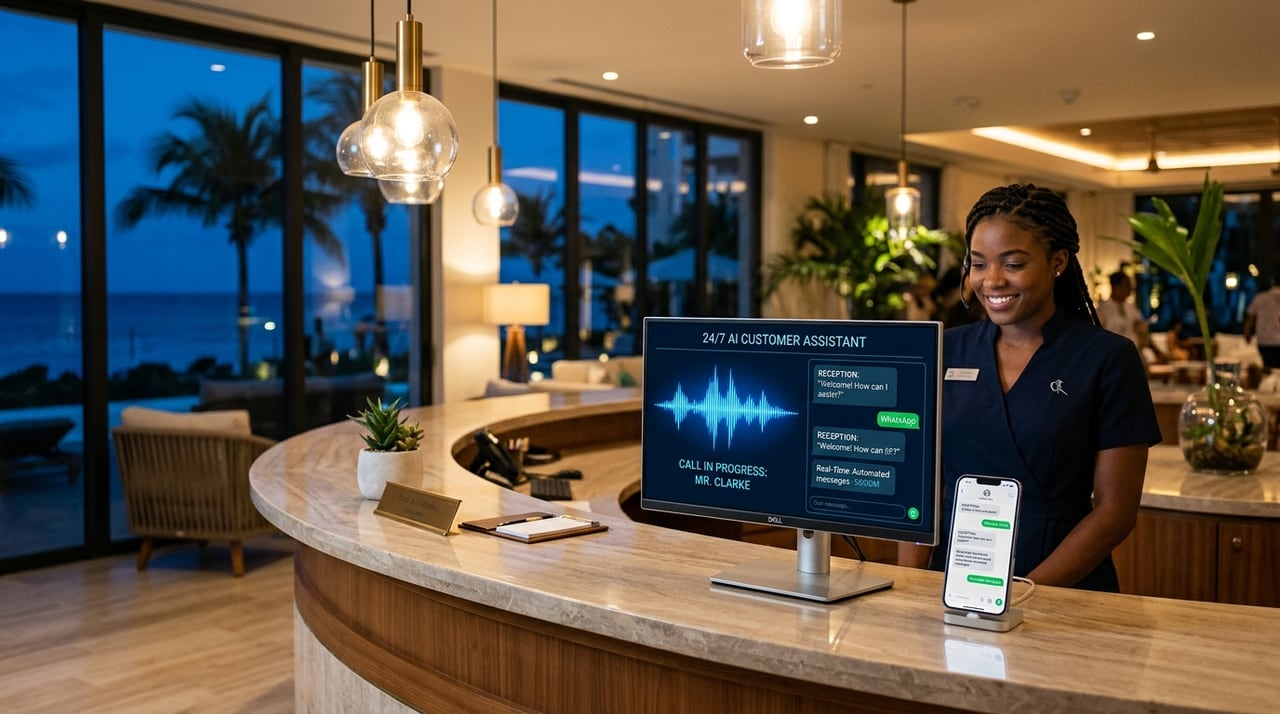
Customers look for haircuts, auto parts, dental appointments, and emergency AC repairs after 6:00 PM and on Sundays. Learn how our 24/7 AI Employee Suite turns after-hours inquiries into confirmed bookings and paid orders.

Step 1: Instant Answer on Ring 1 or Message 1

No voicemail, no hold music, and no slow 2-step request forms

When a caller dials your business number or sends a WhatsApp or web chat message at 9:30 PM, Samantha (Voice AI) or your Chat AI responds immediately using your exact business name, service catalog, and policies.

Step 2: Live Calendar & Storefront Inventory Lookup

Real-time lookup of open chair slots or part SKUs

For service businesses, the AI checks which barber, stylist, or clinic room is free tomorrow and offers specific times. For auto parts and retail stores, the AI searches your live catalog by Make/Model/Year or SKU and confirms availability.

Step 3: Booking Confirmation or Online Checkout Link

Locks in the appointment or sends a 1-click payment link

The customer confirms their booking slot (zero commission) or clicks the checkout link in WhatsApp to pay via 1stPay, BimPay, or card and select Islandwide Delivery or In-Store Counter Pickup.

Step 4: Instant OneSignal Push Alert to Your Team

Wake up to a full calendar and pre-paid pickup orders

Your dashboard logs the full transcript, updates the Walk-In & Appointment Queue or fulfillment board, and sends a zero-cost OneSignal push notification to your phone.

Key Takeaways:
Replaces dated 2-step Make/Model/Chassis web forms that lose impatient buyersCaptures 100% of evening and Sunday calls without waking you upDraws from a transparent Pre-Funded Client Usage Wallet with zero surprise overage bills
Commission Staff vs. Independent Chair Renters: How to run both inside one shop account
Buyer Guide 03 · 5 min read

Commission Staff vs. Independent Chair Renters: How to run both inside one shop account

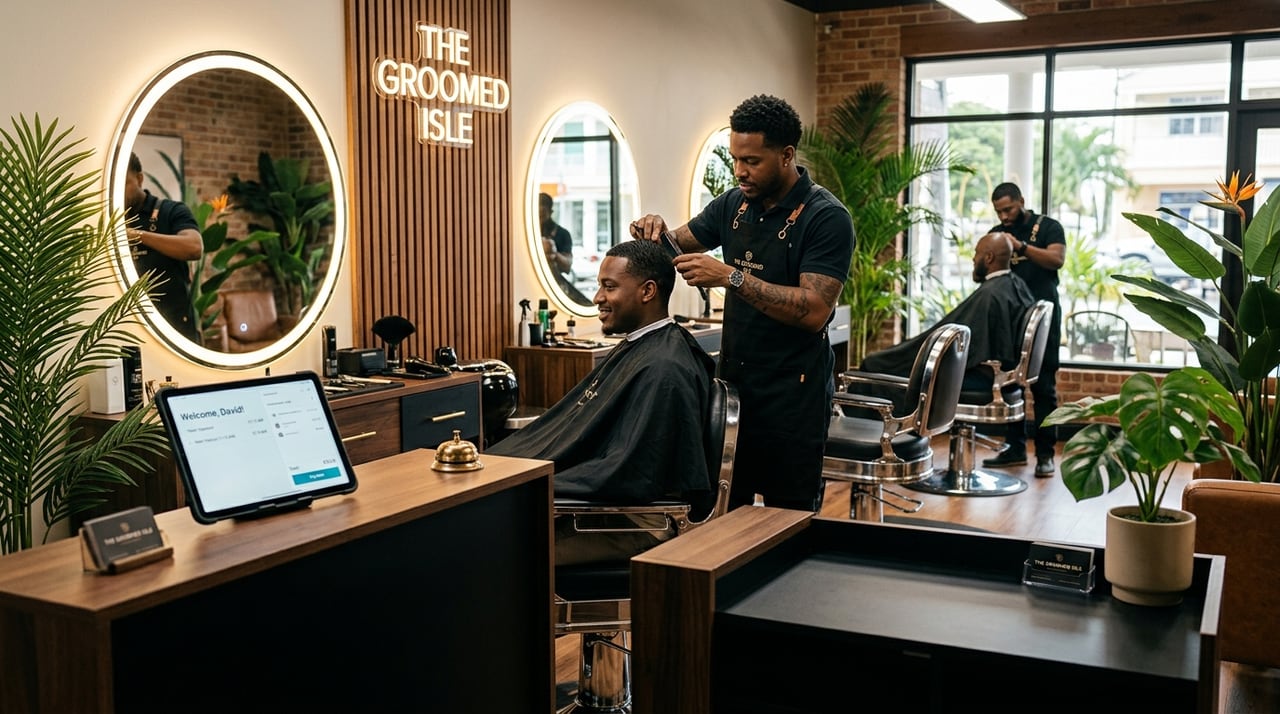
Many barbershops, salons, and wellness studios combine an owner chair, a weekly booth renter, and a commission barber under one roof. Here is how Businesses OS keeps everyone's bookings and money cleanly separated.

Chair Type 1: Studio Owner Chair (100% Revenue)

Chair 1: Studio Owner & Master Stylist

All service checkouts, VIP Grooming Club memberships, and retail product sales rung up under Chair 1 flow 100% into the studio owner's net revenue ledger.

Chair Type 2: Independent Booth Renter (Weekly Rent)

Chair 2: Independent Booth Renter

The independent barber or stylist operates their own chair inside the studio. They get a dedicated personal booking link, their own column on the live walk-in board, and keep 100% of their service payouts while the system tracks their weekly booth rent automatically.

Chair Type 3: Percentage Commission Staff

Chair 3: Commission Barber or Stylist

Every time a commission specialist completes a service at POS, Businesses OS automatically calculates the exact barber and studio percentage split into separate payout ledgers while keeping tips 100% transparent.

The Operational Advantage for Studio Owners

1 rented chair covers the studio's software scope

Collecting weekly booth rent from even a single independent chair renter covers the studio's core software scope while keeping every barber unified on one walk-in board.

Key Takeaways:
No more Friday afternoon calculator arguments over commission splits or unpaid booth rentIndependent barbers get their own personal booking link while staying on the studio's walk-in boardTest this exact 3-chair studio setup live at /book/barber-salon
How to choose the right Core Operating Scope and 24/7 AI Employee Module for your team size
Buyer Guide 04 · 4 min read

How to choose the right Core Operating Scope and 24/7 AI Employee Module for your team size

Use this plain-English guide to pick the exact Core Operating Scope and optional 24/7 AI Employee Suite for your current headcount, number of locations, and daily call volume.

Stage 1: Solo Testing the Waters (Starter Directory Scope)

Best when you want a public directory profile & basic booking link

Start with zero booking commissions and full access to the built-in Ask AI Setup Guide inside your dashboard at no extra cost. Upgrade to full POS whenever you are ready.

Stage 2: Solo or 1-3 Staff Shop (Essential Counter & POS Scope)

Best for small shops needing Walk-In Queue + BimPay/1stPay POS

Essential Scope unlocks the full POS, Walk-In Queue, SVG barcodes, and up to 3 staff calendars. Pair it with the Starter Web Chat & Review AI Module to automate 24/7 Website Chat, WhatsApp inquiries, and Google Reviews.

Stage 3: Multi-Chair Studios & Online Stores (Advance Scope)

Our Most Chosen tier for Booth Renters, Commission Splits & Storefronts

Advance Scope supports up to 10 staff or independent booth renters, automated commission ledgers, VIP memberships, and the full Online Storefront. Pair with the Growth 24/7 Voice & Vision AI Module to add Samantha 24/7 Phone Voice AI and Receipt Vision scanning.

Stage 4: Multi-Branch Retailers, Clinics & Field Fleets (Expert Scope)

Includes up to 2 locations in base scope & unlimited staff

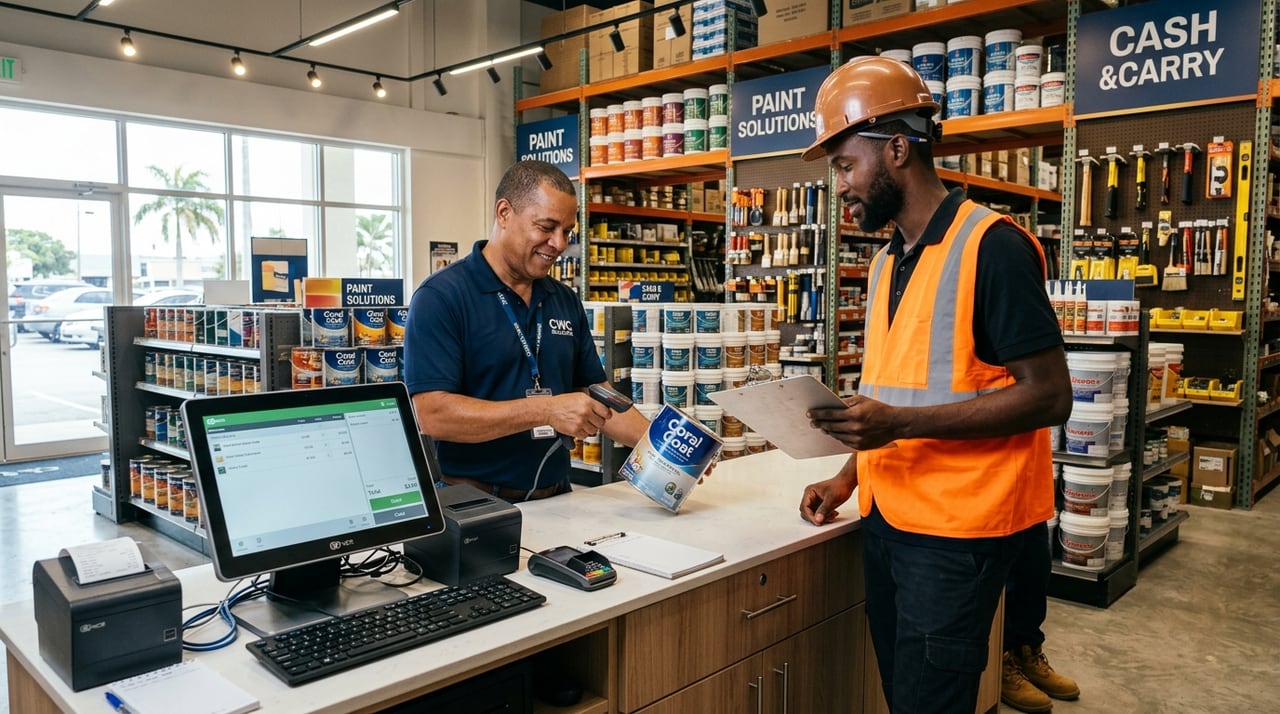
Expert Scope includes 2 physical locations out of the box, cross-branch stock sync, contractor trade quotes, and unlimited staff. Pair with Multi-Location Workforce AI or the Executive AI CFO Suite.

Key Takeaways:
You can start on any Core Scope without customer-facing AI and add a 24/7 AI Employee Module any timeExpert Scope includes 2 physical locations with seamless expansion for additional branchesConfigure your exact industry deliverables in seconds using our Interactive Scope Configurator